To Do List Template I Google Sheets: A Simple System for Tracking Everything on Your Plate
If you juggle a full-time job, multiple side hustles, or a handful of shops, you know the feeling of tasks slipping through the cracks. One minute you’re on top of everything. The next, you’ve missed a deadline, forgotten a client request, or lost track of where a project stands. That’s exactly why I built a straightforward To Do List Template in Google Sheets. I needed something that would let me capture tasks quickly, see what’s urgent at a glance, and avoid spending more time managing the list than doing the actual work. If that sounds like your situation, this walkthrough will show you exactly how the template works, why it’s built the way it is, and how you can put it to use today.
Why a Simple To Do List Template in Google Sheets Beats Overcomplicated Apps
Most task management tools try to do too much. They have boards, timelines, labels, dependencies, and automation that you never end up using. What you really need is a place to dump tasks, mark their status, and quickly spot what’s due soon. A To Do List Template in Google Sheets gives you that without the overhead. There’s no subscription fee, no steep learning curve, and no limit on how many tasks you can add. You open the sheet, fill in a row, and move on. That’s it.
For someone like me—working full-time in sports data while running multiple e-commerce shops—I don’t have the mental bandwidth to learn a new app every quarter. Spreadsheets are familiar. They live in the cloud. And with the free Google Sheets app on my phone, I can check or update my list between meetings, during a lunch break, or while waiting for a shipment to process. That accessibility is the whole point.
What You Get Inside the Download
The template comes as a digital download that you import into your Google Drive. You’ll need a free Google account, which most people already have. Once it’s in your drive, you open it and start using it immediately. The file includes a few critical components that make it more than just a basic list.
Pre-Filled Example Sheet for Context
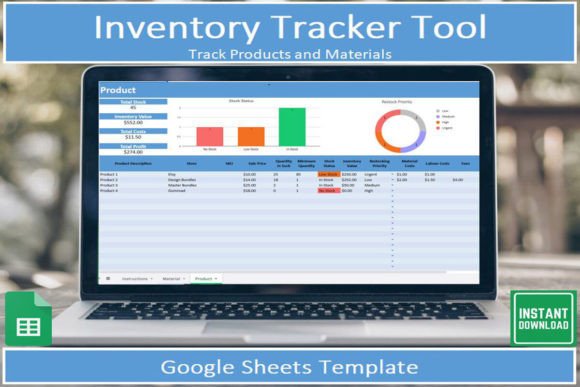
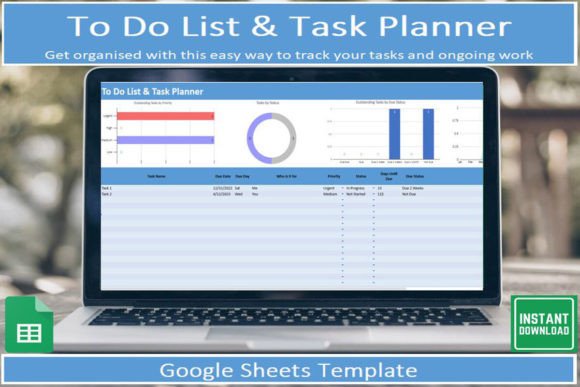
Nothing kills momentum like a blank page. That’s why the template includes a screenshot and a pre-filled example sheet showing how real tasks look when entered. You see how I categorize work, how I note urgency, and where I track progress. This isn’t some theoretical setup. It’s the exact system I use to manage dozens of active tasks across my jobs and shops. You can model your own entries after it, delete the examples, and start fresh without guessing the format.
Built-In Graphical Insights That Update Automatically
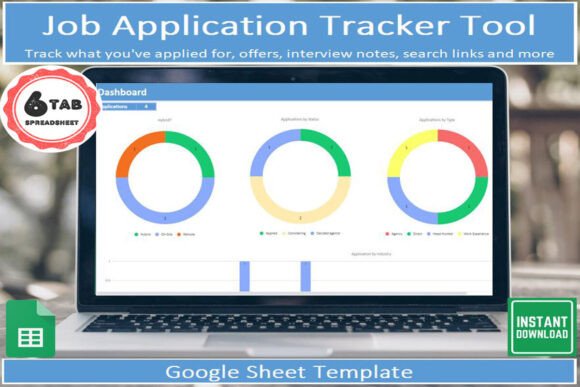
One feature that surprised even me is how useful the automatic charts turned out to be. As you add tasks and update their status, the graphs refresh without any extra input. You get a visual breakdown of how many tasks are pending, in progress, or completed. You can see at a glance whether your workload is balanced or if everything is due in the same week. This is especially helpful when you’re planning your next few days. Instead of scrolling through 40 rows, you look at the chart and know immediately where your attention is needed.
A Tab for Tracking the Full Lifecycle of Each Task
The main tab is where you log everything. But there’s also a secondary tab that lets you track work pieces more granularly. You can record what stage each task is at—whether it’s waiting on someone else, in review, or nearly done. You can note who the task came from, which project or shop it belongs to, and when it landed on your plate. That context matters when you’re trying to prioritize. A task from your biggest client might need faster attention than an internal admin item. Having that info in the same row keeps you from having to cross-reference emails or notes.
How the Template Fits Into a Modern, Multi-Role Workflow
Most people don’t have one single job anymore. They have a primary role, maybe a freelance gig, a small business on the side, or regular volunteer commitments. Each of those roles generates tasks. Without a unified place to capture them, you end up with sticky notes, email drafts, Slack messages to yourself, and mental reminders that fade by lunchtime. A To Do List Template in Google Sheets acts as the single source of truth. You bring everything into one sheet, tag it by role or project, and then sort or filter by urgency.
For example, I have tasks related to sports data analysis, inventory updates for my shops, customer service replies, and marketing calendar items. They all land in the same sheet. I use a column for “source” or “project” so I can filter by shop A, shop B, or my day job. That way, when I sit down to work on one area, I only see the tasks relevant to that area. The rest stay hidden until I switch contexts. This avoids the mental clutter of seeing everything at once while still keeping everything in one file.
Keeping It Simple by Design
I mentioned earlier that I’m not a fan of filling in lots of information. That philosophy drove every decision in this template. Each task row has only the fields you actually need: task name, due date, priority level, status, and maybe a short note. There’s no long-form description box or custom field for hours logged. If you want to track hours, you can add a column, but the default setup assumes you want to spend 15 seconds entering a task, not 5 minutes.
This simplicity has a practical side effect: you’re more likely to actually use it. When entering a task feels like a chore, you stop doing it. The list becomes outdated, and you lose trust in it. By keeping the friction low, the template stays relevant. I’ve been using this same structure for over a year, and it still works because it never feels like extra work.
Prioritization Without Overcomplication
Urgency is one of the hardest things to judge when you have a lot going on. Some tasks feel urgent because they came in last, but they’re actually low impact. Others are quietly important but have no immediate deadline. The template uses a simple priority system—high, medium, low—combined with the due date column. Sorting by priority and then by date gives you a clear action sequence. You tackle high-priority items due soon, then medium-priority items, and so on.
There’s also a built-in way to mark tasks as “waiting” or “delegated.” This is crucial when you’re collaborating with others. If you’ve sent something to a contractor or a colleague, you don’t want it cluttering your active view. Move it to “waiting” status, and it drops out of the immediate action list but stays in the sheet for follow-up. You can check back later without losing track.
Mobile Use Through the Google Sheets App
One of the best decisions I made was setting this up in Google Sheets instead of a desktop-only tool. The free Google Sheets app on my phone means I can update tasks while I’m away from my computer. If I’m at a shop checking inventory and remember something I need to do later, I pull out my phone, open the sheet, and add it in ten seconds. The app syncs instantly, so when I get back to my desk, the task is already there.
This mobile access is a game changer for anyone who isn’t chained to a desk all day. Retail owners, field service workers, parents managing family logistics, freelancers working across multiple locations—all of them benefit from a list that’s always in their pocket. The template’s clean layout also means it renders well on a small screen. You’re not pinching and zooming to find the right column. The most important fields are visible without scrolling sideways.
Practical Tips for Getting the Most Out of the Template
- Use the filter views. Google Sheets lets you create saved filter views for different contexts. Set one for each project or role. That way you can switch views without manually sorting every time.
- Color code by priority. Conditional formatting can automatically color high-priority tasks red and low-priority tasks green. It takes two minutes to set up and makes the list scannable in seconds.
- Review it daily. I open the sheet every morning and afternoon. The habit takes thirty seconds, but it keeps me from missing anything critical. The graphical insights help me see if I’ve been neglecting one area.
- Don’t overthink the categories. If you have a task that doesn’t fit neatly into a category, just put it in “general” or “misc.” The template is meant to be flexible. Strict categories can become a barrier to entry.
Who This Template Works Best For
This design suits anyone who has a high volume of tasks coming from multiple directions. It’s particularly effective for people running physical or digital shops, freelancers managing client work, remote workers balancing meetings with deliverables, and students who also work part-time. It also works well for teams that want a lightweight shared list without paying for a project management suite. You can share the sheet with a collaborator, and both of you can update it in real time.
The template is less suited for projects that require strict Gantt charts, resource allocation, or time tracking down to the minute. If you need those things, you might layer them on top by adding columns, but the core design prioritizes speed and clarity over granularity. Know what you need before you start adding complexity.
A Tool That Grows With You
One thing I appreciate about this approach is how adaptable it is. As your workload changes, the sheet changes with you. You can add new columns for budget estimates, client names, or repeat intervals. You can duplicate the entire sheet for a new quarter and archive the old one. Because it’s your own Google Sheet, you have full control over the structure. The template gives you a solid starting point, but you’re not locked into any one way of working.
After using this for over a year, I’ve found that the real value isn’t in the design of the template itself—it’s in the consistency of using a single system. Before I had this sheet, I was juggling three different lists and losing track of tasks weekly. Now, everything lives in one place. I check it twice a day. I trust it. And because it’s simple, I’ve never stopped using it.
If you’re overwhelmed by the number of things you need to track, try stripping it back. You don’t need a complicated dashboard or a paid subscription. You just need a To Do List Template in Google Sheets that captures what matters, shows you what’s urgent, and stays out of your way. That’s exactly what this one does.